How CompressMP4 Works: Private MP4 Compression in Your Browser
A practical guide to CompressMP4, what the site does, and how its browser-based MP4 compression engine chooses bitrate, size targets, and fallbacks.
 CompressMP4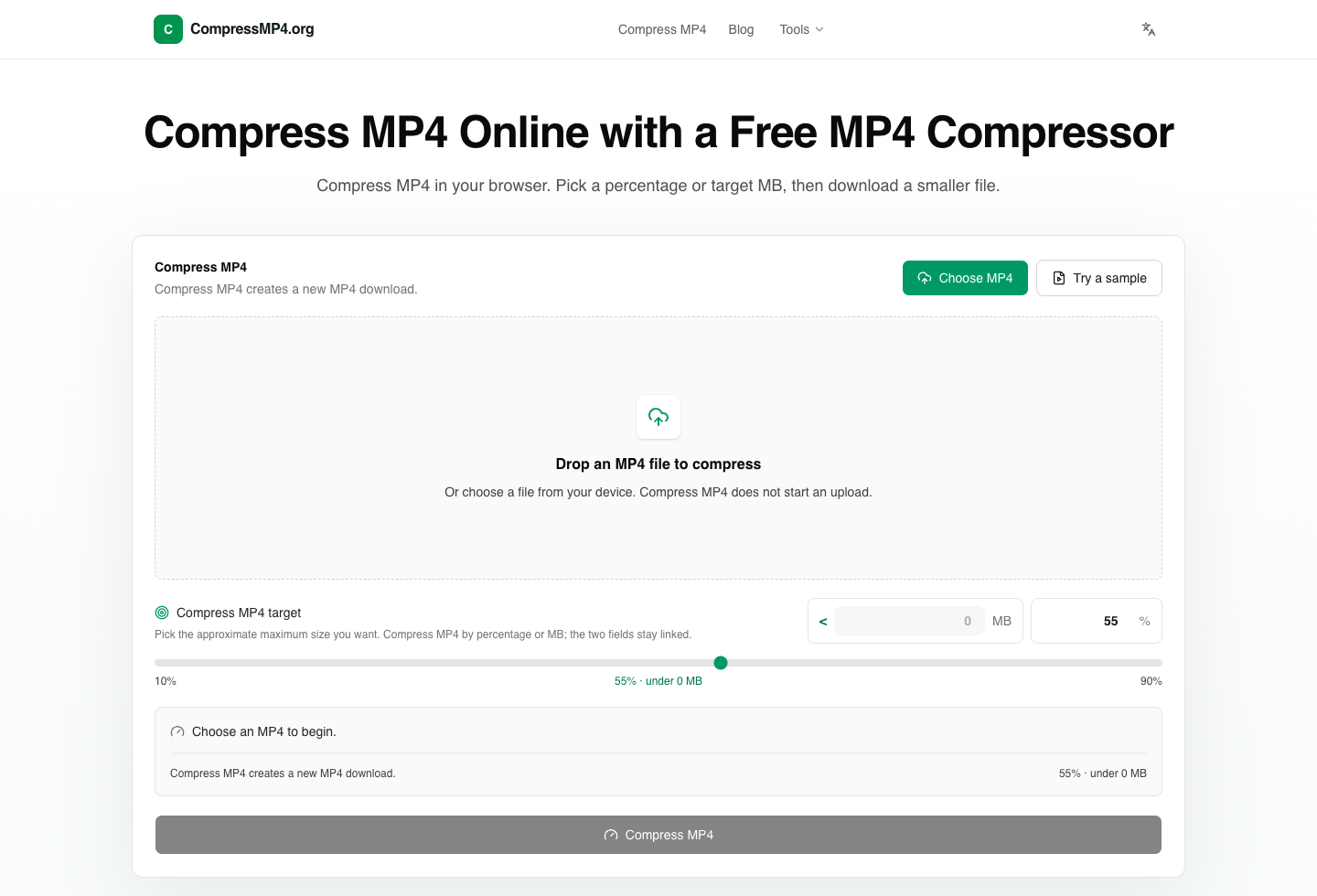
CompressMP4 is a free online tool for making MP4 files smaller without uploading the video to a server. You open the site, choose an MP4, set either a compression percentage or a target file size in MB, and download the smaller video from the same browser tab.
That design is useful for everyday upload problems: a video is too large for email, a chat app, a form, Discord, a phone transfer, or a social platform. Instead of installing desktop software or sending a private file to a remote converter, CompressMP4 does the work locally with browser video APIs and a WebAssembly fallback.
What the site lets you do
The main compressor supports two ways to set the output goal:
- Compression percentage: choose a target such as 55% of the original file size.
- Target size: enter a target like 25 MB or 100 MB, and the tool converts that into a matching compression percentage.
The same compressor can be used for common jobs such as email attachments, chat apps, upload forms, phone transfers, and social posts. If you need to estimate a target first, use the video file size calculator.
The important product choice is privacy: the selected video stays in the browser. The page reads local metadata, compresses the file in memory, creates a temporary download URL, and lets you save the result.
The compression goal: target bytes, not vague quality
CompressMP4 starts with a concrete size budget. If you choose 55%, the tool calculates:
target bytes = original file size * 0.55
If you type a target MB value, the site treats it as a strict maximum instead of forcing it into the percentage slider's 10%–90% range. Percentage mode remains an approximate reduction, while target-size mode retries an oversized result and reports clearly when the requested limit is not feasible.
That budget matters because video compression is mostly a bitrate problem. A video file is roughly:
file size = bitrate * duration
So after the browser reads the video's duration, width, height, frame rate, and audio information, CompressMP4 estimates a target total bitrate. It reserves some space for audio, then spends the remaining budget on video.
The fast path: WebCodecs through Mediabunny
On browsers that support WebCodecs, CompressMP4 uses a fast local path powered by Mediabunny. This path can decode, transcode, and repackage MP4 video without sending the file anywhere.
The tool builds a compression plan from the source video:
- It estimates the video bitrate needed to fit the target size.
- It reserves audio bitrate based on the source audio track.
- It may reduce very high frame rates for aggressive compression.
- It may resize the video when the requested output is much smaller than the source.
- It prefers hardware acceleration when the browser makes it available.
The output codec is H.264/AVC in an MP4 container, which keeps the result broadly compatible with browsers, phones, messaging apps, and upload forms.
Why large videos may run a calibration pass
Long videos are harder to predict than short clips. A calm screen recording and a fast-moving sports clip can have very different compression behavior even if they share the same duration and resolution.
For larger, longer videos, CompressMP4 may run a short sample pass first. It compresses a small slice of the video, projects the likely full output size, and tightens the bitrate plan if the estimate is too optimistic. This avoids wasting time on a full pass that is clearly going to miss the target.
After that, the tool runs the main pass. If the result is still too large and the video has not shrunk meaningfully, it can run one tighter pass with a lower bitrate. The goal is to get close to the requested size while avoiding unnecessary extra passes.
The fallback path: FFmpeg in WebAssembly
If the browser does not support WebCodecs, or if the fast path cannot handle a specific file, CompressMP4 falls back to FFmpeg compiled to WebAssembly.
The fallback uses familiar encoding choices:
- H.264 video through
libx264 - AAC audio
- A fast preset for reasonable browser-side runtime
- Bitrate control based on the selected target size
- Optional scaling when the bitrate is very low
This path is usually slower than WebCodecs, but it gives the site broader compatibility. It also keeps the same privacy model: the video is still processed locally in the browser tab.
Why the result may not be exactly the target size
Video compression cannot guarantee a perfect output size in every browser and for every source file. CompressMP4 aims for the selected target and accepts a small tolerance because real encoders need room to preserve motion, audio, keyframes, and container overhead.
Some source files are also already heavily compressed. In that case, asking for a very small output can force visible quality loss, lower resolution, or a slower second pass. For most uses, a realistic target is better than the smallest possible number.
When to use CompressMP4
Use CompressMP4 when you need a smaller MP4 quickly and you do not want to upload a private video to a remote converter. It is especially useful for:
- Email attachments and support forms
- Discord, WhatsApp, and chat sharing
- Social posts with upload limits
- Classroom, work, and client video handoffs
- Reducing storage size before archiving a clip
For very large files, use a desktop browser when possible. Large video compression needs memory and CPU, and desktop Chrome, Edge, Firefox, and Safari usually have more room to work than mobile browsers.
Start from the CompressMP4 homepage, choose your MP4, set a target, and download the smaller file.